Addressability is a hot topic in the advertising industry due to signal loss resulting from phaseout of third-party cookies. In Feb 2022, IAB Tech Lab releases “Seller Defined Audiences (SDA)“, aims to democratize cohort development for the open ecosystem. This is the first addressability specification from IAB Tech Lab.
In his blog, Ben Dick, Senior Director of Product – Consumer Privacy, identity and Data of IAB Tech Lab, states:
“IT’S NOT JUST ABOUT AUDIENCES
While much of the attention of the spec is focused on privacy-centric audience signaling, SDA also supports contextual signaling (by simply conveying Content taxonomy IDs instead of Audience Taxonomy IDs), and/or content signaling (should publishers work with a proprietary content labeling service vs a standardized taxonomy). The key difference is that context and content labels have yet to be standardized for the industry – as we have with audience metadata via the Data Transparency Standard – but that’s something Tech Lab is exploring.”
Though contextual signaling and/or content signaling are yet to be standardized, it doesn’t stop innovative souls from using context and content creatively. Actually, long before the signal loss became a concern, AdRelevantis, the pioneer in content driven ad delivery, developed their Content-Driven Advertising technology platform. The platform takes content as first party data and has been integrated with Prebid.js and Google Ad Manager. It is ready for publishers who want to display content-relevant native product ads. Drop us a line at info@adrelevantis.com if interested.
Contextual advertising is coming back due to the end of third-party cookies. However, it may not go far if its inherent issues are not identified and solved.
In today’s contextual advertising, as a publisher, you do not have much to do since most of work is done by an ad network. The ad network targets ads to keywords and topics; the ad network analyzes your pages; the ad network places the ads in your pages, and you hope they have made a good match for you!
What if you want more control of advertising process for your pages? What if page content becomes the driving force, just like demographic and geolocation? That is what Content-Driven Advertising does. It puts content at forefront.
With AdRelevantis’ Content-Driven advertising solution, when a page starts loading, our AI tool extracts page content and returns ranked keywords and IAB Categories. The ranked keywords and IAB Categories are sent to match ads. The matched ads are returned and displayed. The entire process is automatic, and delivers better matches, all in real time when the page is viewed.
A few important points to be noted:
Ranked keywords and IAB Categories are sent as first party data.
IAB Categories are an industry standard and can work across DSPs.
There is no need for third party page analysis.
Relevant ads are displayed in the first page view request.
It integrates with both Prebid and Google Ad Manager.
Contextual advertising sounds great. However, its use is far from prolific. The reason is that in the current practice, the contextual advertising is confined in a specific ad network. For example, to do contextual advertising in Google Display Network, you define ads with targeted keywords or topics in the network, webpages need to be analyzed by the network prior to participating in contextual advertising and the network takes control of ad display.
Content-Driven Advertising, a new form of contextual advertising, doesn’t have the above limitations.
First, in Content-Driven Advertising, ads with targeted keywords or IAB Categories can be from any ad networks. Actually, any searchable sources like product offering repositories can be used to create ads.
Second, webpages don’t need to be analyzed by an ad network prior to participating in contextual advertising. Actually, a page participates in contextual advertising in the first view request. With viewership decays exponentially over days, you don’t want to wait to participate in contextual advertising until your pages are analyzed by an ad network. You want to display contextual relevant ads in the first view request and from day one.
Third, you as a publisher take control of the advertising process by providing keywords or IAB Categories of your page content. The ads are matched by the keywords or IAB Categories. The matched ads are displayed.
With inception of content-relevant native ads, Content-Driven Advertising is no longer a theory, it is a reality. With millions product offerings from affiliate marketplaces, it can display product ads that are relevant to almost any type of content. So, give a try now.
Any questions? Contact us at info@adrelevantis.com.
To understand what the Content-Driven Advertising is and how it works, please read the following posts:
Set up standard banners and native ads in Google Ad Manager can be challenging and error prone. Here, I separate these steps into several videos so that you can follow more easily.
Create an ad unit. This ad unit is for both banner ads and native ads.
2. Create a native style for native ads.
Here is the complete HTML code.
<a href="%%CLICK_URL_UNESC%%##hb_native_linkurl##" target="_blank" class="pb-click">
  <div class="card">
    <div class="title">
        <h1>##hb_native_title##</h1>
    </div>
    <div class="attribution">
        <h1>##hb_native_brand##</h1>
    </div>
    </div>
</a>
<script src="https://cdn.jsdelivr.net/npm/prebid-universal-creative@latest/dist/native-render.js"></script>
<script>
    var pbNativeTagData = {};
    pbNativeTagData.pubUrl = "%%PATTERN:url%%";
    pbNativeTagData.adId = "%%PATTERN:hb_adid%%";
    // if you're using 'Send All Bids' mode, you should use %%PATTERN:hb_adid_BIDDER%%
    pbNativeTagData.requestAllAssets = true;
    window.pbNativeTag.renderNativeAd(pbNativeTagData);
</script>
You want an area of a page to show both standard banner ads and Content-Driven Native ads alternatively based on page views. This can be done in Google Ad Manager. Here, I discuss how to achieve this.
In the adUnits, you specify both banner and native as mediatypes. For banner, you specify the sizes of ads you want to display. In defineSlot function, you need to specify ‘fluid’ (for native ads) and sizes (for banners).
The rest of work is in Google Ad Manager. Let’s say you want to display a 300×250 banner and native square Content-Driven ads alternatively.
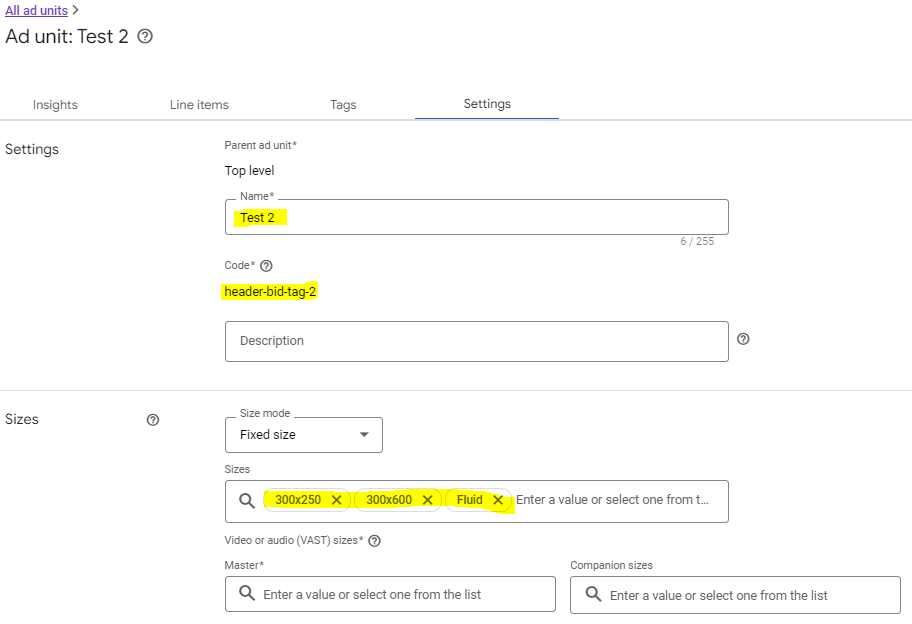
First, you need to define an ad unit. For sizes, you need to select ‘Fluid’ for native ads and possible banner sizes that you want the ad unit to display.
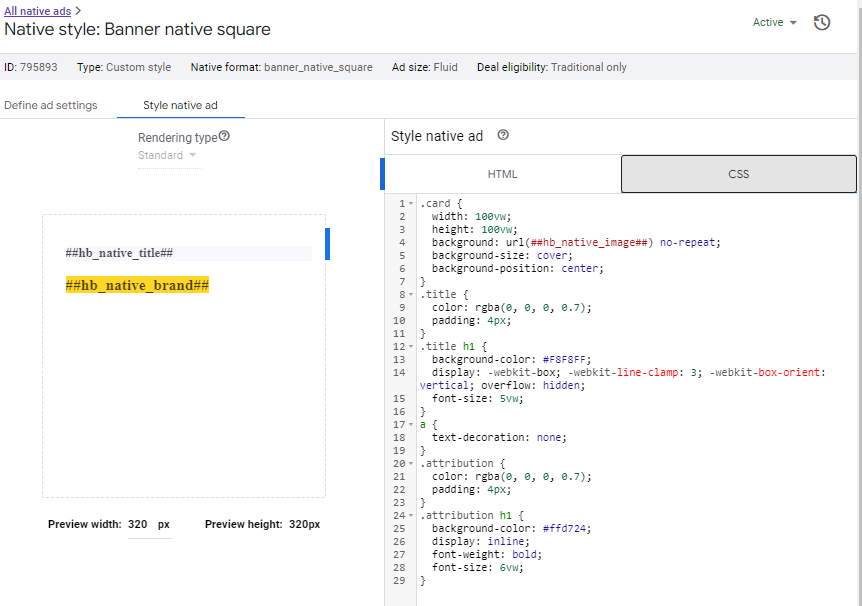
Then, you define a Native. Make sure it targets to the ad unit defined in the previous step (“Test 2” for this case).
You also need to define HTML and CSS of the native.
Here is the complete HTML code.
<a href="%%CLICK_URL_UNESC%%##hb_native_linkurl##" target="_blank" class="pb-click">
  <div class="card">
  	<div class="title">
    	<h1>##hb_native_title##</h1>
  	</div>
  	<div class="attribution">
    	<h1>##hb_native_brand##</h1>
  	</div>
	</div>
</a>
<script src="https://cdn.jsdelivr.net/npm/prebid-universal-creative@latest/dist/native-render.js"></script>
<script>
    var pbNativeTagData = {};
    pbNativeTagData.pubUrl = "%%PATTERN:url%%";
    pbNativeTagData.adId = "%%PATTERN:hb_adid%%";
    // if you're using 'Send All Bids' mode, you should use %%PATTERN:hb_adid_BIDDER%%
    pbNativeTagData.requestAllAssets = true;
    window.pbNativeTag.renderNativeAd(pbNativeTagData);
</script>
Now, you can define your campaign Order and its line items.
You need to define a line item for your banner. Note the Expected creatives is 300×250.
Make sure you target to Inventory “Test 2”.
You also need to define a creative for this line item. For this case, the creative is the banner image, the click through, etc.
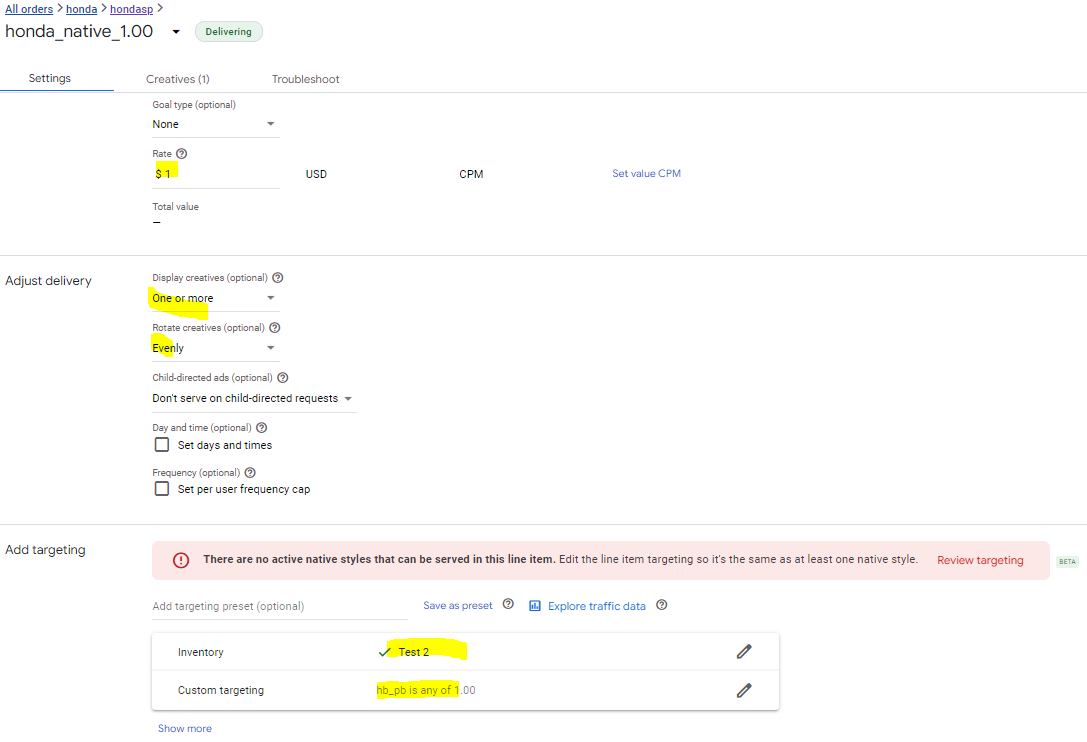
Now, you need to define a second line item for the native ads. Make sure select the previous defined native as Expected creatives (“banner_native_square” for this case).
Make sure select “Test 2” as Inventory targeting.
You are done.
You can click this link to see how it actually works. In general, the banner ad takes precedence. When its impressions are using up, the native ads kick in.
The next step is to move the code into your pages or integrate it with your code base.
Any questions? Please contact us at info@adrelevantis.com.
To understand what the Content-Driven Advertising is and how it works, please read the following posts:
In the previous blogs (Part 1 and Part 2), I discussed how Content-Driven Native Ads work with our GAM tags. In this blog, I show you how to set up your GAM tags to work with Content-Driven Native Ads.
I assume that you use Prebid.js header bidding platform for your site. I presume you have a Google Ad Manager account and have basic understanding of it.
Let’s say you want to display a native ad to fit in a square area of your page.
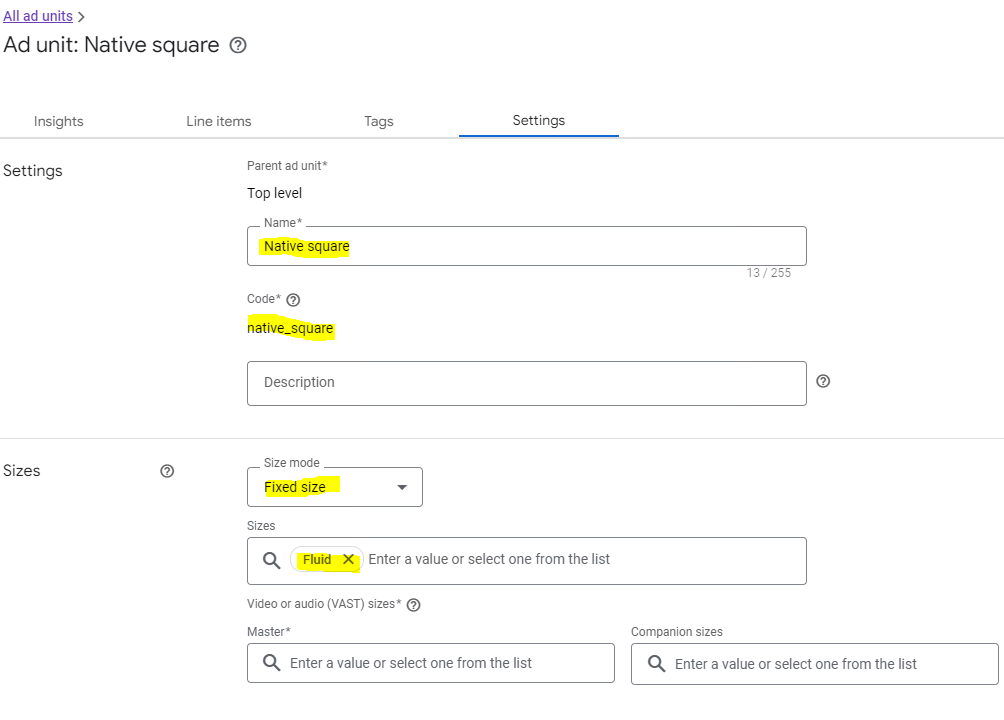
In Ad units of GAM, add an ad unit as follows. Make sure select Size mode “Fixed size” and Sizes “Fluid”.
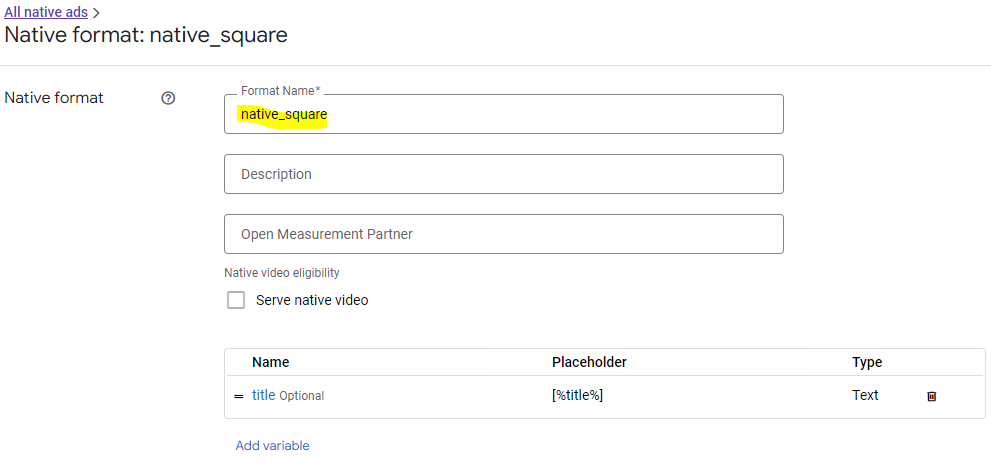
In Native of GAM, add a Native format.
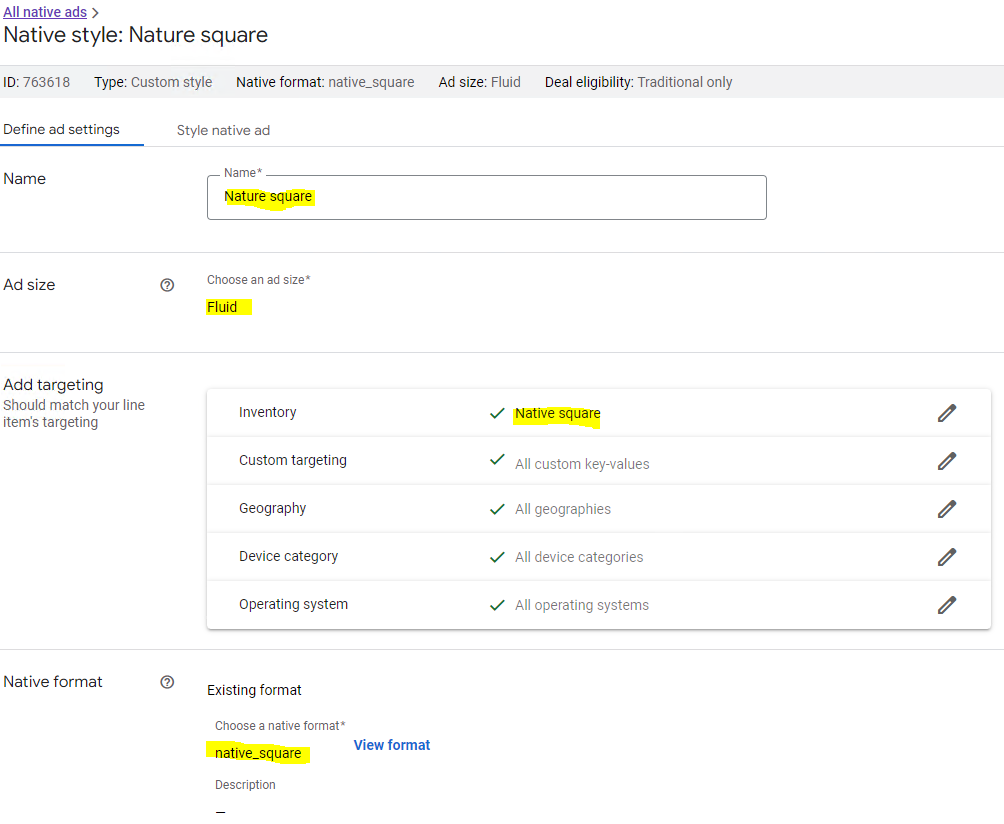
Add a Native style. Make sure choose “Fluid” as an ad size. Select “Native square” ad unit as targeting Inventory. Choose the “native_square” format defined previously.
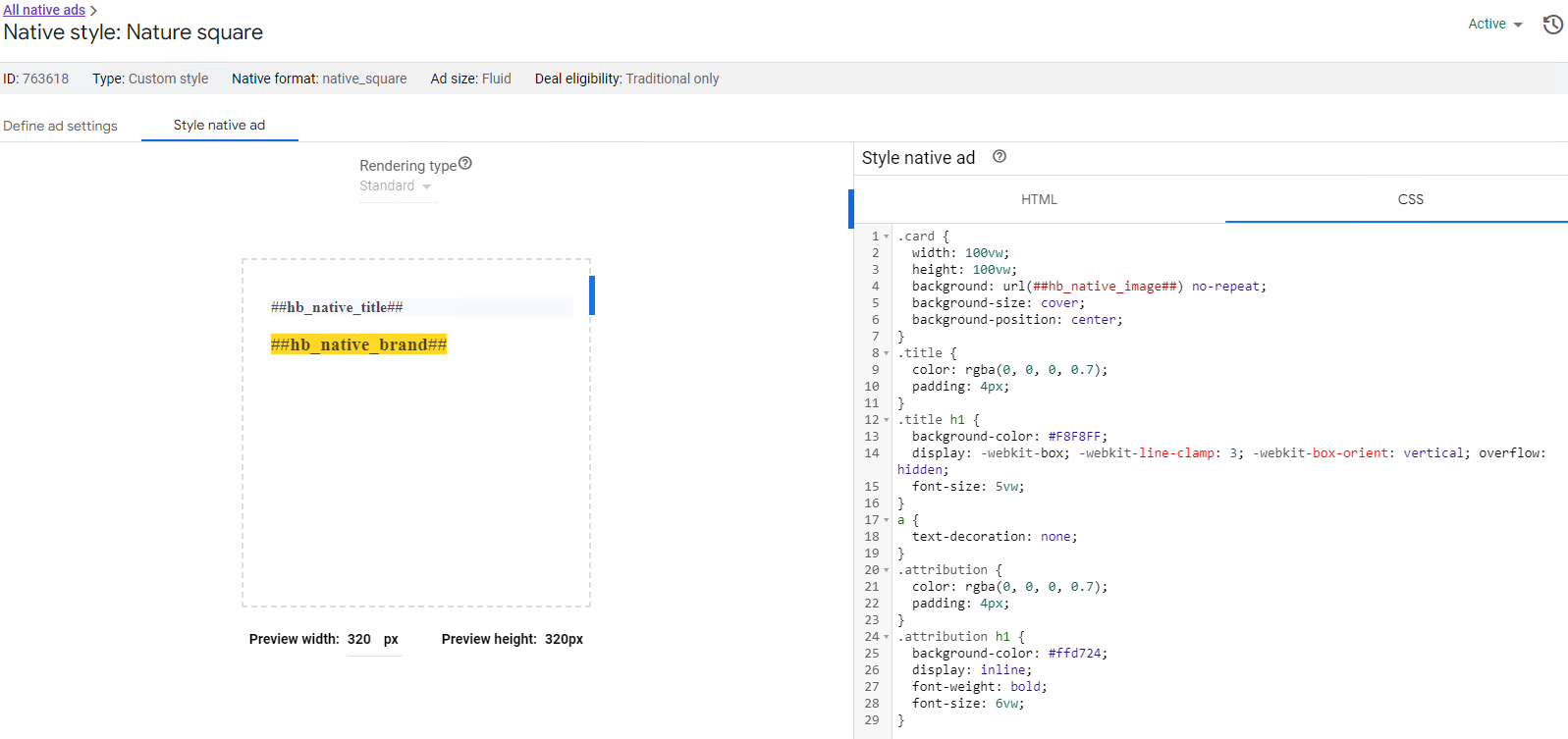
Insert the following code in HTML and CSS of Style native ad tab, respectively.
Here is the complete HTML code.
<a href="%%CLICK_URL_UNESC%%##hb_native_linkurl##" target="_blank" class="pb-click">
  <div class="card">
  	<div class="title">
    	<h1>##hb_native_title##</h1>
  	</div>
  	<div class="attribution">
    	<h1>##hb_native_brand##</h1>
  	</div>
	</div>
</a>
<script src="https://cdn.jsdelivr.net/npm/prebid-universal-creative@latest/dist/native-render.js"></script>
<script>
    var pbNativeTagData = {};
    pbNativeTagData.pubUrl = "%%PATTERN:url%%";
    pbNativeTagData.adId = "%%PATTERN:hb_adid%%";
    // if you're using 'Send All Bids' mode, you should use %%PATTERN:hb_adid_BIDDER%%
    pbNativeTagData.requestAllAssets = true;
    window.pbNativeTag.renderNativeAd(pbNativeTagData);
</script>
In Creatives of GAM, create a creative named “Native square”. Make sure to choose the previously defined format “native_square” as Creative template. Select “Native” as Target ad unit size. And select “jsdelivr” as ad technology provider.
That finishes the definition of the Native Square ad. You can define other ad formats by following the same steps. The only difference is their HTML and CSS code.
For Native Nature format (ads cross the width of content section), the HTML code is
<a href="%%CLICK_URL_UNESC%%##hb_native_linkurl##" target="_blank" class="pb-click">
  <div class="sponsored-post">
  	<div class="thumbnail" style="background-image: url(##hb_native_image##);">
    </div>
  	<div class="content">
    	<h1>##hb_native_title##</h1>
    	<div class="attribution">##hb_native_brand##				</div>
  	</div>
	</div>
</a>
<script src="https://cdn.jsdelivr.net/npm/prebid-universal-creative@latest/dist/native-render.js"></script>
<script>
    var pbNativeTagData = {};
    pbNativeTagData.pubUrl = "%%PATTERN:url%%";
    pbNativeTagData.adId = "%%PATTERN:hb_adid%%";
    // if you're using 'Send All Bids' mode, you should use %%PATTERN:hb_adid_BIDDER%%
    pbNativeTagData.requestAllAssets = true;
    window.pbNativeTag.renderNativeAd(pbNativeTagData);
</script>
Now, you can define your Order and its Line items in GAM.
In your line item definition, select the formats “native_sqaure”, “native_nature”, “native_horizontal” and “native_vertical” as Expected createives.
And select Ad units “Native square”, “Native horizontal”, “Native nature” and “Native vertical” as targeting inventory.
You can define multiple line items with the same Expected Creatives and targeting Ad units but with different delivery rates ($1.50, $2.00, etc.).
Now, your GAM tags are ready to serve Content-Driven Native Ads. Just hook them up with Adrelevantis Bidder Adapter as described in the previous blogs.
Any questions? Please reach us at info@adrelevantis.com.
To understand what the Content-Driven Advertising is and how it works, please read the following posts:
In the previous post, I discussed how to find/display content-relevant native ads by targeting to particular keywords and categories using Googletag. In this post, I’ll show you how to get the keywords and categories of a page automatically in real time when a page is viewed, and then, display relevant native ads using Googletag.
//Content-Driven Advertising needs access to content. So, wait DOMContentLoaded event to start the bid process
document.addEventListener("DOMContentLoaded", function(event){
  //Content-Driven Advertising refers to individual pages
  //Set referrer to no-referrer-when-downgrade to ensure safety while providing page path
  if (document.querySelector('meta[name="referrer"]') === null){
    var meta = document.createElement('meta');
    meta.name = "referrer";
    meta.content = "no-referrer-when-downgrade";
    document.getElementsByTagName('head')[0].appendChild(meta);
  }
  else {
    document.querySelector('meta[name="referrer"]').content = "no-referrer-when-downgrade";
  }

  var q = document.getElementsByTagName('body')[0].innerText;

  var pload = 'q=' + encodeURIComponent(q);
  var h = new XMLHttpRequest();
  h.onreadystatechange = function () {
    if (4 === this.readyState) {
      if (200 === this.status) {
        var res = JSON.parse(this.responseText);
        if (res != null){
          var cats = res["Category"];
          var keywrds = res["Keyword"].replaceAll(/\|/g,",");
          bidFunc(keywrds, cats)
        }
      }
    }
  };
  h.open("POST", "https://api.adrelevantis.com/getcatskeywords", true);
  h.setRequestHeader("Content-type", "application/x-www-form-urlencoded");
  h.send(pload)
});
When DOMContentLoaded is fired, the page content is sent to a web service called “https://api.adrelevantis.com/getcatskeywords“. The web service returns ranked keywords and IAB Categories of the content. The keywords and the categories are passed into bidFunc to start bid.
In summary, here is what happens when a page is viewed. A user opens the page -> At DOMContentLoaded event, the page content is parsed for its keywords and IAB categories -> The keywords and the Categories are sent to the bidder -> The bidder returns a bid that matches the keywords and the categories along with other bid parameters -> The bid is sent to Google Ad Manager for display.
Here are a few live examples. Click them to see native ads that are relevant to their content.
Google Ad Manager has been set up to work with Adrelevantis Bidder Adapter to deliver native ads that are relevant to page content. As a publisher, you just need to use the Google tag to display relevant ads in your pages. In this blog, I will show you how to make a page to display content-relevant ads by providing keywords and IAB Categories for the page.
The function bidFunc(keywrds, cats) has typical Prebid.js code for publishers that works with Googletag. Pay attention to the setBidderConfig that sets keywords and categories for adrelevantis bidder. These keywords and categories are used to match ads. If an ad found and other criteria (geo-location, cpm, etc.) met, a bid is returned. The rest of the code defines ad units, maps the ad units to ad slots of Google Ad Manager, and requests bid.
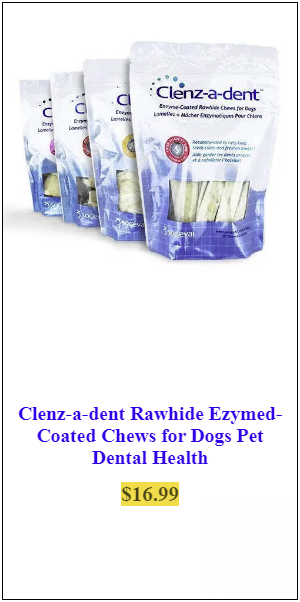
In this simple example, we hard-coded the comma-separated keywords (“Pets Dental Health,Pet dental”) and the pipe-separated IAB Categories (“/pets|/pets/cats”) for demonstration purpose. If you know the keywords or IAB Categories of a page, or you want to target to particular keywords or categories, you can use this approach. However, it will be more useful if the keywords and categories of a page can be identified automatically when the page is viewed. In next post, I will discuss how an AI service can be used to identify the keywords and categories of a page automatically.
Click the following link to see native ads in this example: native-example.
Contact: info@adrelevantis.com.
To understand what the Content-Driven Advertising is, please read the following post:
The key functionality is in function adrtags(adUnits, adDivIds), which is in the Javascript contentdriventag.js (you can get the file at https://www.adrelevantis.com/pub/contentdriventag.js). The function adrtags takes two parameters: adUnits as defined Prebid.js ad units, and adDivIds as defined DIVs in the page that correspond to individual ad units.
The function adrtags does three things.
1. It extracts page content and sends it to a content analysis (AI) service and returns its IAB Categories and ranked keywords.
2. The IAB Categories and the keywords are added to the Adrelevantis bidder as First Party Data of Prebid.js. The bid request is sent to the Adrelevantis SSP and other SSPs.
3. The returned bids are rendered as native ads. It gives one way to render the bids as native ads. You can use Google Ad Manager for native ads if you work with Google Ad Manager. Or you can render the bids in native ad formats using your own code.
Please don’t hesitate to ask if you have any questions. You can leave a comment or drop us a line at info@adrelevantis.com.
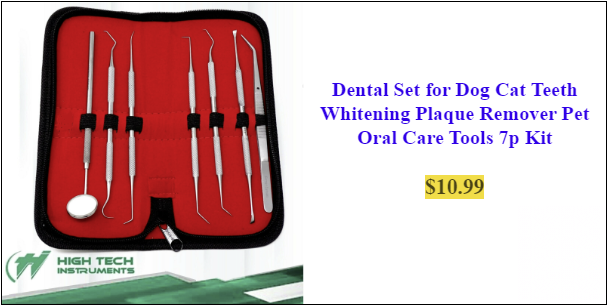
Content-Relevant Native Product Ads not only match your page content, but also adapt to your page’s look and feel. They mix with the page content naturally and natively. Here are a few examples.
Content-Relevant Native Product Ads are between text content and image content.
Content-Relevant Native Product ads are between image content and text content.
As you can see in the above screenshots, there are a few different layouts of the Content-Relevant Native Product ads. They are: Square, Cross Board, Horizontal Rectangle and Vertical Rectangle.
It is very easy to design a layout and its size. In the ad unit, you specify sizes as follows.
Square: You specify width and height as follows.
{
  ......,
  sizes: [[250, 250]],
  ......
}
Cross Board: You specify width as 1 and height as 1. The ad will be rendered as height=100px and width=100%.
{
  ......,
  sizes: [[1, 1]],
  ......
}
Horizontal Rectangle: You specify the width and height as follows.
{
  ......,
  sizes: [[320, 250]],
  ......
}
Vertical Rectangle: You specify the width and height as follows.
Feel free to drop us a line at info@adrelevantis.com or contact us at https://www.adrelevantis.com/ if you have any question or would like to know more about Content-Driven Advertising.













 Improve Ad Relevancy